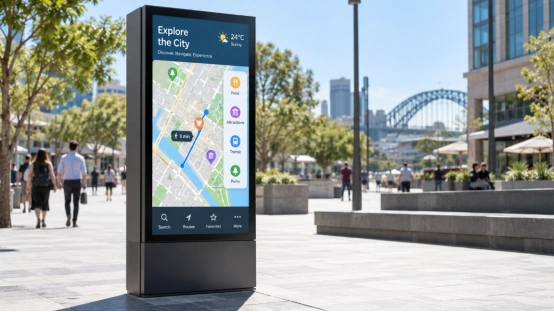
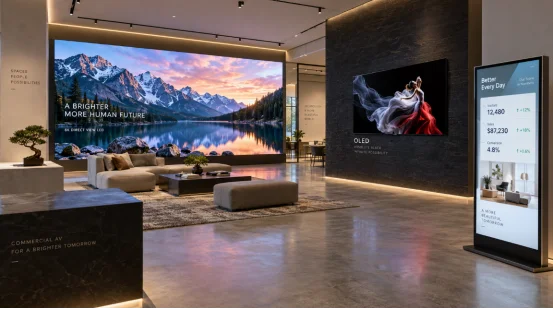
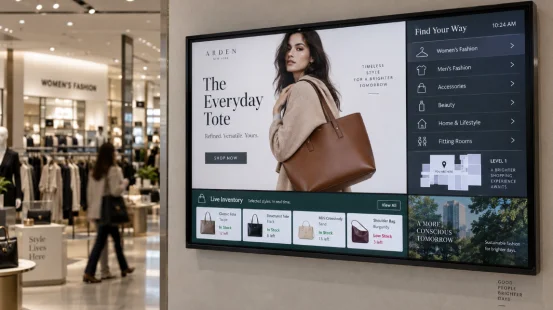
An Android display device may look simple, but touch input, video playback, apps, network traffic, background services, and peripherals all compete for processor time and memory. That is why Android display lag may appear after deployment even when a sample seemed fine.
If you are choosing an Android all-in-one machine for retail, hospitality, healthcare, education, a kiosk, or a control panel, match Android display hardware to the real job. Good Android display performance is less about buying the highest specification and more about avoiding weak links.
What Causes Android Display Lag?
Lag usually comes from several small limits at once. A processor may run one app well, then slow down when a browser, remote management, video, and touch input are active together. Memory and storage can create the same problem.
CPU Load, RAM, and Storage
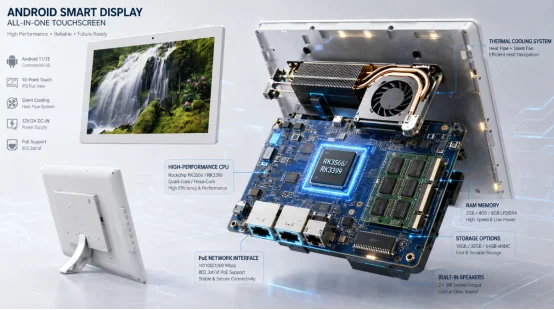
Processor choice matters because interface rendering, decoding, app logic, and multitasking all depend on it. Commercial units may use platforms such as RK3566, RK3288, or RK3399. The best CPU for Android all-in-one machine use should match your software load, video resolution, and active tasks.
When RAM is tight, apps reload and background services close. Slow or nearly full storage adds another bottleneck. That combination is a common answer to “why is my Android display lagging”.
How Does Hardware Configuration Improve Stability?
A stable device needs headroom. Minimum software requirements only show that an app can run. They do not show how it will behave after updates, cached files, extra services, or long operating hours.
Match the Processor and Memory to the Workload
The best hardware configuration for Android display projects depends on the real workload. A basic Android digital signage display needs less memory than an Android kiosk display running ordering software, a browser, peripherals, and remote tools.
For light single-app use, 2GB RAM may work. For a commercial Android display with interactive apps, 4GB is often a safer starting point. Heavier multitasking can justify 8GB or more. So, does more RAM make an Android display faster? Sometimes, especially when memory pressure causes reloads. It cannot fix a weak CPU, slow storage, poor cooling, or bad software.
Storage, Heat, and Power Matter Too
Android display configuration should leave free storage for updates, logs, media, and cache. Heat also matters. When a processor runs hot for long periods, it may reduce clock speed and the device feels slower.
Power is a quiet troublemaker. Cameras, scanners, speakers, USB devices, and bright panels raise demand. For a stable Android display for 24/7 operation, power margin and heat control deserve the same attention as CPU and RAM.
How Much RAM Does an Android Display Need?
The answer depends on the app stack, not screen size. A 10-inch unit can run heavier software than a larger display. Screen dimensions are not a useful shortcut for memory sizing.
Choose RAM Around Real Software
For simple signage or one lightweight app, 2GB may be enough. For browser tools, POS functions, dashboards, or an Android touchscreen display with several services, 4GB gives more breathing room. Complex software or multiple active apps can push requirements higher.
Before mass production, test the exact app, media files, and peripherals. That is the practical way to answer how much RAM does an Android display need for your project.
Can Touch, Network, and Power Problems Feel Like Device Lag?
Yes. Not every slow response is a CPU problem. A device can benchmark well and still feel sluggish at a counter because touch control, WiFi, server response, or power is causing delay.
Separate Touch Delay from System Delay
For an Android touch screen monitor, touch controller quality, firmware, app response time, and GPU workload all affect perceived speed. Some commercial screens support 5-point or 10-point touch, useful for interactive menus, control panels, and service terminals.
Check Network and Installation Conditions
Cloud apps may feel slow when WiFi is weak or a server responds late. Ethernet can reduce that variable. Optional PoE can also carry power and data through one cable. A 10-inch Android display is one example where PoE, WiFi, USB, app installation, desktop placement, and wall mounting can be configured around deployment.
How Should You Choose an Android Display Configuration?
Start with the use case. Buying hardware first and fitting software later often creates unnecessary cost or stability problems. Map the app load, network, interfaces, mounting, power, and expected operating hours before finalizing the board.
Match the Device Type to the Job
An Android digital signage display mainly needs stable media playback. An Android kiosk display puts more weight on touch response and peripheral support. An Android all-in-one PC used for dashboards or business tools may need stronger multitasking. A custom Android all-in-one machine can also be built around special interfaces, casing, power, touch, or software needs.
When comparing display product options, check whether the supplier can support the full system rather than only the panel. Android display performance depends on those less visible parts too.
How Can You Test Stability Before Bulk Deployment?
A useful sample test should copy the real site. Run the actual app, connect the same USB devices, use the target network, play the real media, and keep the unit powered for long sessions. Short demos can hide problems that appear after several hours.
Test the Whole System, Not Just Specifications
Watch CPU load, memory use, storage growth, temperature, touch response, network recovery, and reboot behavior. Aging tests are valuable for a commercial Android display because they can expose heat, power, and component issues that quick inspection misses.
This is also how to improve Android display performance without blindly increasing specifications. Fix the actual bottleneck first.
What Supplier Capabilities Help Reduce Deployment Risk?
Once the hardware target is clear, supplier capability becomes part of stability planning. A useful Android display manufacturer should be able to adjust system configuration, memory, interfaces, touch, structure, and power design, then support sampling, testing, quality control, and repeat production.
works with smart displays and Android all-in-one machine projects and provides hardware, software, and supply services for OEM/ODM work. Its official product information includes Android 6–13 options, RK3566/RK3288/RK3399 processor choices, 5/10-point touch, WiFi, USB, optional PoE, desktop or wall mounting, app installation, and aging tests for long-term operation. For an OEM Android display project, that range matters because a device can be matched to the application instead of forcing every project into one fixed board.
The practical goal is simple: choose enough performance, leave margin for real use, and validate the complete system before scale.
FAQ
Q1: Why is my Android display lagging?
A: Check CPU load, available RAM, free storage, temperature, background services, network delay, and power stability. Lag often comes from several limits together.
Q2: How much RAM does an Android display need?
A: Light single-app use may work with 2GB. Interactive commercial software often benefits from 4GB, while heavier multitasking may need 8GB or more.
Q3: What is the best CPU for Android all-in-one machine projects?
A: The best CPU depends on app complexity, video decoding, multitasking, peripherals, and operating hours. Test your real software before locking the configuration.
Q4: How can you improve Android display performance?
A: Find the bottleneck first. CPU, RAM, storage, heat, power, touch firmware, and network quality can all affect response speed.
Q5: What should you check before ordering an OEM Android display?
A: Confirm Android display hardware, RAM, storage, OS version, touch points, interfaces, WiFi or Ethernet, PoE needs, mounting, cooling, power margin, and aging-test requirements.