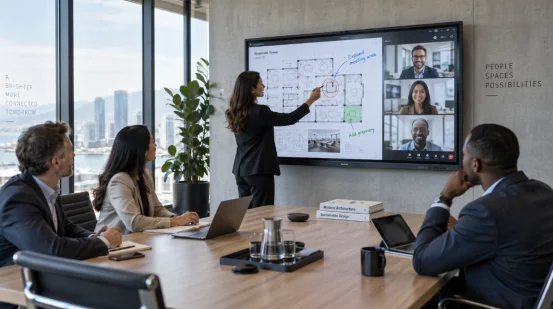
A project manager taps a floor plan on the meeting-room screen. A designer at home marks the same file, and the note appears beside the drawing while the discussion is still moving. That simple exchange explains why interactive displays in hybrid workspaces have become practical meeting infrastructure.
Interactive display technology combines a large screen, touch input, annotation, content sharing, and connected software. In a hybrid meeting room, it gives office and remote participants one visible work surface. Your buying decision should then cover connections, acoustics, security, and support.
Why Are Interactive Displays Becoming Central to Hybrid Workspaces?
Hybrid teams lose time when content sits across a laptop, a wall screen, a paper sketch, and several chat windows. A digital whiteboard gathers those materials in one place. People can point, write, move items, and save the result before the room clears.
One Shared Canvas for Working Sessions
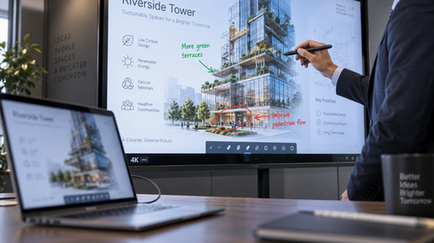
An interactive flat panel display turns a presentation into a working file. A product team can enlarge a CAD view, circle a tolerance issue, and attach a note during the call. Real-time annotation records the discussion in context, giving another time zone a usable handoff.
Clearer Participation across Locations
Remote collaboration depends on visibility and turn-taking. A multi-touch display lets several people at the table work on screen, while video conferencing integration sends the content to remote attendees. Camera framing and microphone pickup still matter. A sharp 4K image cannot rescue a call when the remote engineer cannot hear the person near the window.
Which Features Matter in a Hybrid Meeting Room?
A long feature list can hide a weak room workflow. Match the display to the laptops, conferencing platform, network rules, and tasks your staff already use. Test the full path from plugging in a device to saving the marked-up file.
Fast Connections for Guest and Staff Devices
A USB-C interactive display can carry video, audio, touch data, and laptop charging through one cable when the display, computer, and cable support each function. HDMI remains useful for guest laptops and fixed room computers. HDMI sends picture and sound, while a USB touch cable usually returns touch commands to the connected computer.
Wireless screen sharing helps a presenter move around the room and lets another attendee share a phone or tablet. Keep a wired option nearby. Busy office Wi-Fi and guest-network restrictions have a habit of showing up five minutes before a client call.
Touch Performance That Fits the Work
Check touch accuracy near the corners, stylus response, palm rejection, and the number of simultaneous touch points. A design review may need precise marks. A weekly status meeting may only need scrolling and simple notes. The right specification follows the task.
Front USB 3.0 ports suit flash drives and temporary cameras. Rear ports suit fixed peripherals. An OPS slot can hold a compact computer inside the panel for managed desktop software.
Network and Software Compatibility
Wi-Fi 6 supports casting and cloud access, while RJ45 Ethernet provides a wired route for calls, updates, and remote support. Ask IT to test device discovery, guest access, user authentication, and firmware policies. The display product range should also be checked against your operating systems, conferencing software, and required ports before a pilot begins.
How Should You Plan an Interactive Display Deployment?
Interactive display deployment works best as a room project. Screen size, viewing distance, mounting height, daylight, cameras, cable routes, and network coverage affect the same meeting. A pilot room exposes awkward details before rollout.
Map the Real Meeting Workflow
List the steps for a client call, design review, and staff training. Record how a guest connects, where files come from, who can annotate, and where the notes go. Ask several staff members to run those sessions with limited help.
Set Measurable Acceptance Checks
Time how long it takes to join a call and share content. Test touch return, sound, camera framing, source switching, and wireless casting from the farthest seat during normal office traffic. Procurement can also check brightness, color consistency, power cycling, and touch accuracy.
Plan Ownership after Installation
Name the team that manages accounts, updates, replacement cables, and room guides. A two-line guide beside the panel often saves more support calls than another manual page. Keep input labels consistent across rooms.
What Risks Should Buyers Address Before Purchase?
Buyers usually worry about price, adoption, privacy, and service life. Those concerns belong in the specification and pilot. A lower purchase price can still produce a costly room when users need repeated help or when a failed cable stops the call.
Cost and Adoption
Calculate the installed cost, including the mount, cabling, camera, microphone, computing module, software licenses, training, and support. Track meeting start time, support tickets, room use, and completed collaborative sessions during the pilot. These figures show whether the meeting room technology helps people finish work.
Security and Maintenance
Define sign-out behavior, local file deletion, USB access, network segmentation, and update responsibility with IT. Ask how the supplier records hardware and firmware revisions. Confirm spare-part availability, warranty handling, and the process for replacing a touch module, power supply, or computing unit.
Where Is Hybrid Workspace Technology Heading?
The next stage of hybrid workspace technology centers on better meeting continuity. Speech transcription can create searchable notes. Handwriting recognition can turn board content into editable text. Room sensors can report occupancy and device health. Connected building systems can use that data for scheduling and service alerts.
AI features need a clear job and a stated data policy. Test transcription with the accents and technical terms your team uses. Check where recordings and notes are stored, who can retrieve them, and how long the system keeps them. Useful automation starts with those details.
How Can the Right Display Partner Support Hybrid Work?
Room performance depends on matching the display, ports, software, and service plan to a repeatable workflow. YIAISIGN offers smart display development plus OEM and ODM support, with flexible customization across Android all-in-one machines, digital signage, portable monitors, and related screen products.
For a hybrid workspace project, that range gives buyers a practical route to discuss screen format, touch needs, system configuration, enclosure design, and connector placement as one specification. Ask for a sample or pilot unit and test it with your actual laptops, network, conferencing software, and peripherals. Approval should follow recorded results for image quality, touch response, source switching, thermal behavior, and long meeting sessions.
FAQ
Q1: What Are Interactive Displays in Hybrid Workspaces?
A: They are connected touchscreens that combine shared content, annotation, device input, and conferencing tools for people working in the room and remotely.
Q2: Which Screen Size Fits a Hybrid Meeting Room?
A: Choose by viewing distance, room depth, seat layout, and content detail. Test the smallest text and drawings used in real meetings before ordering.
Q3: Does a USB-C Interactive Display Work with One Cable?
A: Yes, when the display, laptop, and cable support video, audio, touch return, and power delivery. Confirm each function during the pilot.
Q4: How Do You Measure the Value of an Interactive Flat Panel Display?
A: Track meeting start time, support calls, room use, completed annotation sessions, saved notes, and follow-up time across a defined pilot period.
Q5: What Should You Test Before a Large Interactive Display Deployment?
A: Test device connections, touch accuracy, sound, camera framing, source switching, wireless screen sharing, network access, account security, updates, and recovery after a power cycle.