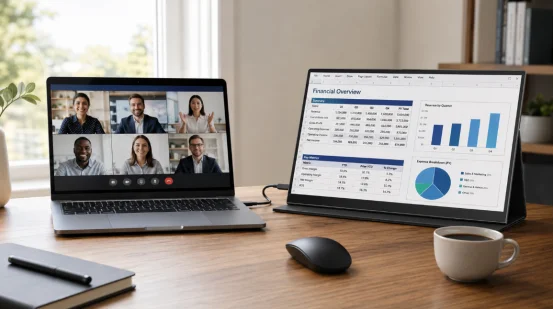
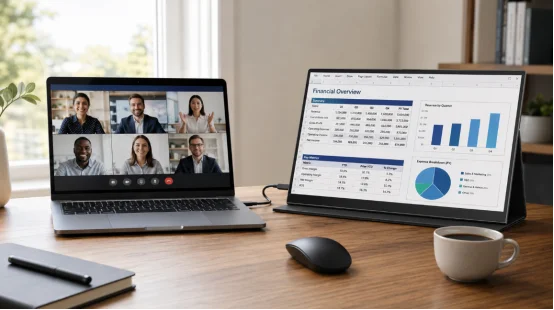
Remote work has found a steady beat. Some people work from home, while others hop between offices and client desks. A laptop is easy to carry around, but its small screen makes reading charts and doing video calls much harder. That is why buying teams now view portable displays as must-have work tools.
The real trick is picking models that stay useful for a long time. These top five features will help guide your portable monitor procurement in 2026.
What Should You Check First in Portable Monitors for Remote Teams?
Before looking at new screens, figure out how your team does their jobs. A finance worker needs a totally different setup compared to a sales rep. You should check their laptop ports, travel habits, and how they get power. This quick check ensures you buy items for real work, rather than just chasing fancy numbers.
1. Display Quality That Supports Long Work Sessions
Screen clarity is a big deal. For basic everyday jobs, a Full HD panel makes words easy to read, and it keeps the laptop from working too hard. A screen with more pixels helps a lot with video edits, but it eats up more battery.
Try to find screens with brightness around 300 nits or higher for bright rooms. An IPS-type panel gives you wider viewing angles than standard choices. Getting the colors right is also super important. If your team edits photos, ask the seller for their color-gamut data. A screen might look great in the dark but look very dull in an office. Nice touches like a matte finish really help stop tired eyes.
2. Simple Connectivity Across Company Devices
An extra screen is only good if workers can plug it in fast. A USB-C portable monitor uses just one cable for video and power. This is the easiest choice for new laptops. Still, buying teams must be careful. Not every USB-C plug can send video out. You need to check for HDMI links and USB-C video support.
Ensure the box includes the right cables. Building a dual-screen setup for remote work takes good planning. Try out basic tasks on your team’s laptops to test extended desktop mode. Testing real laptops stops you from having to return a huge pile of screens later.
Which Practical Features Affect Daily Use?
Spec sheets look super clean on paper, but real life is messy. Cables get lost, and hot gear gets shoved into bags. These little things change how happy a worker feels.
3. Power Efficiency and Battery Flexibility
Power usage changes how handy a screen is. A screen using just one USB-C cable is super easy to set up. However, it can drain laptop batteries pretty fast. Make sure to ask sellers for normal power stats, instead of just the highest peak numbers.
Models with built-in batteries help a ton in cafes with no wall plugs. But they do add extra weight. If your team travels a lot, weigh the whole bag. Buying managers need to pick a clear goal, like lasting a full work block. Remember to buy extra charging cables. Lost cords cause so many complaints.
4. Ergonomics, Protection, and Serviceability
An extra screen should sit safely on a tiny desk and slide easily into a bag. Built-in stands and VESA mounts help fit different areas. Check how stiff the hinges are.
The outside case must handle being packed away over and over. Metal or tough plastic covers are great, but actual build quality matters most. When making a portable monitor buying guide for everyone, ask about fixing things. Can you buy a new cord? A cheap screen is a bad deal if one broken plug ruins everything.
How Can Procurement Teams Control Fleet Costs?
Buying ten screens is simple. Buying a few hundred turns into a huge tracking job. Pick standard rules before ordering.
5. Manageability, Security, and Total Cost of Ownership
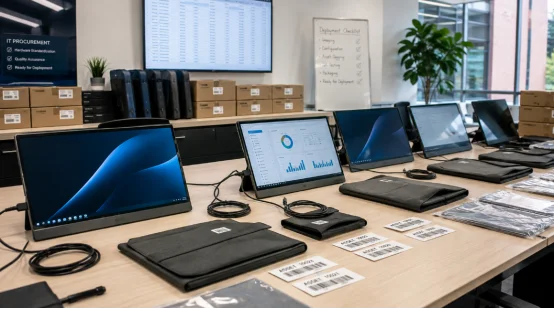
Pick a few allowed screen types. Having the same sizes and cords makes training easy. Write down serial numbers and swap histories. Safety is still a huge deal. Stay away from screens that need weird apps.
Add up the full cost over three years. Count the shipping, extra parts, and IT help time. A slightly dearer model might save cash later on because it has tougher hinges. Watch numbers after you hand them out. Count help tickets and break rates. Hard facts guide your next buy better than guesses.
Where Can a Display Supplier Add Value Beyond the Hardware?
Picking a good seller gets simpler when you know what you want. YIAISIGN offers portable monitors inside a big group of screen items, including digital signs and Android all-in-one machines. Their data talks about ODM/OEM help covering design, plugs, and tests.
For buyers, this means planning gear and rollout together. The real question is if the seller can prove their tests and quality checks early on. You can peek at the firm’s main site to see their broad screen skills before asking for a price.
FAQ
Q1: What size is best for portable monitors for remote teams?
A: Sizes from 14 to 16 inches hit a sweet spot. Smaller screens fit quick trips perfectly. A 16-inch model is great for viewing big charts.
Q2: Is a USB-C portable monitor compatible with every laptop?
A: No. The USB-C plug has to allow video out, often through DisplayPort Alt Mode. Check every laptop model and keep HDMI choices ready.
Q3: Do portable monitors need their own power adapter?
A: Some pull power right from the laptop. Brighter screens might need a wall plug. Test the gear with your real laptops.
Q4: How should a company manage a portable monitor fleet?
A: Write down serial numbers, names, and past repairs. Pick a few set models and look at help tickets later on.
Q5: What should you ask a portable monitor supplier before ordering?
A: Ask for test units, brightness facts, fix rules, software notes, and their quality check steps.