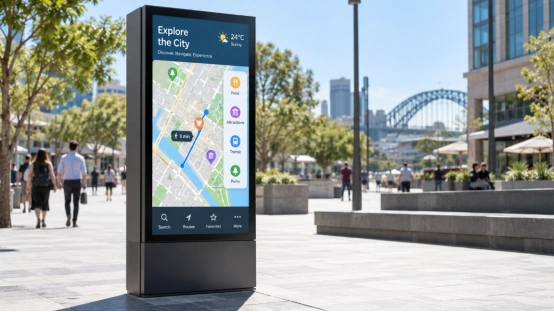
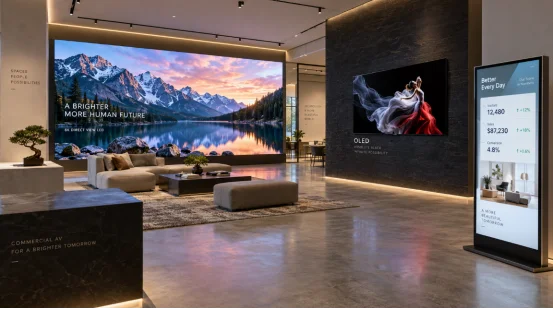
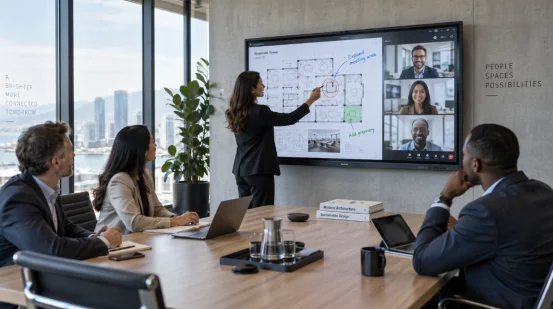
Digital signage screen flickering may pulse, dim, flash black, or shimmer during a playlist. Prices, directions, menus, and safety messages become harder to read. Sources: cable, power, output settings, backlight or panel, and firmware or playback software.
If you are asking, “why is my digital signage flickering,” start with checks that need no tools.
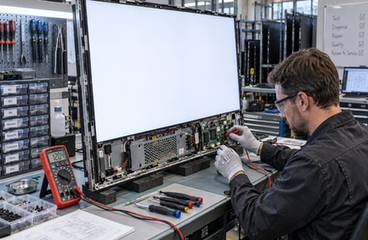
What Does Digital Signage Flickering Look Like?
The pattern points to the source. Whole-screen shimmer often follows a signal or power problem. A fault in one corner points toward the panel or backlight. Flicker with one video file points toward the player or content settings. Record when it starts.
Common Symptoms and Quick Tests
A flickering digital display may show brightness changes, blackouts, horizontal artifacts, or image tearing. Run a static white image, a dark image, and a known-good video. Note whether every input behaves the same way. This record makes digital signage troubleshooting faster for your service technician.
Cause 1: A Loose or Damaged Video Cable Interrupts the Signal
Cleaning or movement can loosen a connector. A cable fault often affects the full image, then clears.
Symptoms and a Two-Minute Test
If moving the screen, player, or cable changes the fault, inspect the loose video cable, bent pins, cracked plug, and strain near the connector. An HDMI cable causing screen flicker can also exceed a stable length for the selected resolution or pass through a failing adapter.
Fast Fix
Turn off the display and player. Reseat both ends, then test a short, specification-matched replacement without an adapter or extender. If the picture stays stable, secure and label the tested cable, then replace the suspect part.
Cause 2: An Unstable Power Source Affects the Display
Flicker may begin when air conditioning, lighting, or a compressor starts. A failing adapter, loose DC jack, wrong voltage, or low PoE budget can create it.
Symptoms and a Two-Minute Test
An unstable power supply may cause brightness pulsing, restarts, heat, buzzing, or several screens flickering together. These are common digital signage power issues. Test a verified outlet with the approved adapter. Compare voltage, current, polarity, and wattage with the label or manual. For PoE equipment, check the switch standard and port budget.
Fast Fix
Use the correct adapter and a sound outlet. A UPS or power conditioner can help when measured voltage events match the flicker. Electrical faults, odors, exposed conductors, and repeated breaker trips require a qualified electrician.
Cause 3: Refresh Rate or Resolution Settings Do Not Match the Display
The player and panel need a supported timing mode. A new player or content profile can introduce an unstable mode.
Symptoms and a Two-Minute Test
A refresh rate mismatch can produce a steady shimmer or a brief loss of picture when a playlist starts. A screen resolution mismatch, unsupported color depth, HDR mode, or custom timing can also interrupt the link. Compare the panel manual with the player output.
Fast Fix
Set the player to the panel’s native resolution and a documented refresh rate, commonly 60 Hz where listed. Test a standard mode before HDR. Update the driver, restart both devices, and repeat the content from a second source.
Cause 4: The LED Backlight, Panel, or Driver Board Is Failing
When cables, power, and output settings check out, the display becomes the suspect. Heat, a loose ribbon, an LED driver fault, or panel damage can create local flicker.
Symptoms and a Two-Minute Test
LED backlight flickering often appears as dim patches, pulsing at one brightness level, or a fault in one region. Show solid white, black, red, green, and blue images. A digital signage panel failure may involve a backlight strip, driver board, or ribbon connection. Record the affected area.
Fast Fix
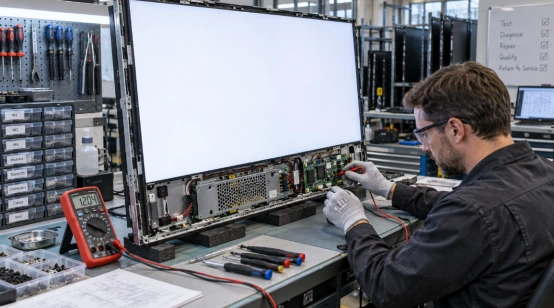
Lower brightness briefly and clear external vents according to the manual. Record the model, serial number, operating hours, brightness, input, and temperature. Use warranty service or trained repair staff for diagnosis. The enclosure stays closed during untrained access.
Cause 5: Firmware, Drivers, or Playback Software Produces the Flicker
Software faults often follow a configuration change. Static image may stay stable while one video file or scheduled task flickers.
Symptoms and a Two-Minute Test
Screen flickering after firmware update can point to a changed display profile, driver, codec, or output mode. Other digital signage software issues may appear in one playlist. Test a static image and known-good video, then record the firmware, player, codec, and file properties.
Fast Fix
Back up the configuration. Apply the approved digital signage firmware update and compatible drivers, then restart and test a basic playlist. Re-encode a failing video with a supported frame rate, resolution, codec, and bitrate. Use the supported rollback process when needed.
How to Fix Digital Signage Flickering in the Right Order?
Use this sequence for a clear answer. It limits part changes and gives a technician evidence when the fault remains.
A Practical Diagnostic Sequence
Check whether one screen, several screens, or one content item flickers.
Reseat the cable and test a known-good replacement.
Verify the outlet, adapter, voltage, and PoE budget.
Match native resolution and supported refresh rate.
Run a static image and known-good video.
Update approved firmware, drivers, and playback software.
Document any localized fault for service.
When Does a Flickering Screen Need Professional Repair?
Some symptoms carry electrical or hardware risk. A cable test is reasonable; opening a powered display requires trained service. Smoke, burning odor, exposed wiring, repeated shutdowns, and a hot enclosure require equipment isolation and inspection.
Service Information to Prepare
Request commercial display repair when flicker stays in one area or follows the panel across verified sources. Send a fault video, model, serial number, recent changes, input type, and completed tests.
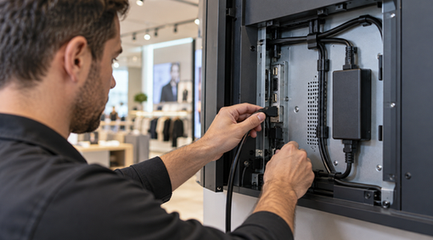
How Can Digital Signage Maintenance Reduce Repeat Flicker?
Small checks catch loose connections and heat buildup before an outage. Put them on a calendar with the screen asset.
Monthly and Quarterly Checks
Monthly digital signage maintenance includes cable inspection, screen cleaning, a solid-color test, and device alerts. Each quarter, clean vents, check temperature, review firmware, and inspect adapters, PoE ports, and mounts. After a configuration change, test resolution, refresh rate, codec support, and the playlist.
What Should You Specify When Flicker Keeps Returning?
Repeated faults need a display specification that matches the site and service plan. YIAISIGN provides digital signage, advertising machines, and all-in-one display systems. Its OEM and ODM work can align panel size, brightness, ports, operating system, enclosure, firmware, and mounting points with an installation. Review the digital signage product range and share the flicker pattern, inputs, temperature, and access needs.
A sample can be checked with your player, cable length, brightness, playlist, and network routine. The YIAISIGN display team can discuss screen format and service details for stability.
FAQ
Q1: Can an HDMI cable cause digital signage to flicker?
A: Yes. A loose connector, damaged pin, long cable, or failing adapter can interrupt the signal. Reseat it and test a known-good replacement.
Q2: Why does digital signage flicker at 50 Hz or 60 Hz?
A: The source and panel may use different timing modes. Set the player to the documented native resolution and refresh rate.
Q3: Can unstable power damage a commercial display?
A: Voltage events, an incorrect adapter, heat, and restarts can stress components. Use the approved supply and request electrical service for odor or breaker trips.
Q4: Why does only one part of the screen flicker?
A: A backlight strip, driver circuit, ribbon connection, or panel section may be failing. Run solid-color tests and call trained service support.
Q5: Can a firmware update stop screen flickering?
A: An approved update can correct a display profile, driver, or playback fault. Back up settings, install the release, restart, and test a basic playlist.