
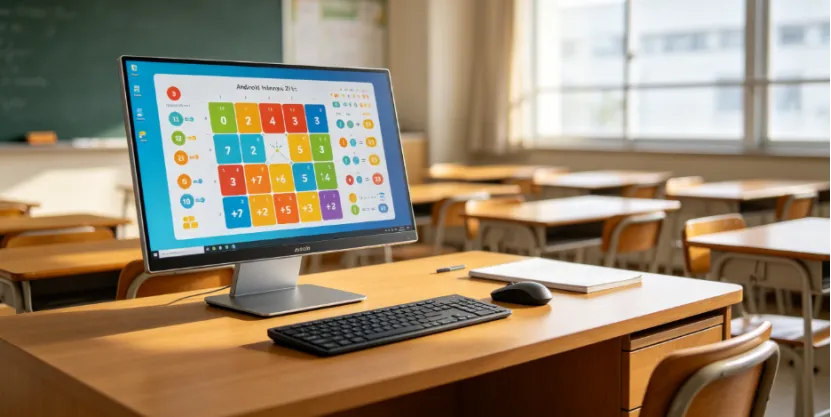
 A modern classroom needs more than just a blank screen on the wall. You need a tool kids can actually touch. Teachers must control it with ease. Plus, schools want to run it all day without making tons of tech support calls. That is why the Android All-in-One Touchscreen Desktop is turning into a smart choice for education and learning spaces.
YIAISIGN is a professional smart display manufacturer. They have over 15 years of experience making digital display screens. Their product range covers Android all-in-one machines, digital signage, portable monitors, digital day clocks, and smart display solutions. For school buyers, the best part is not just the screen itself. It is the great mix of hardware design and software service. They also offer customization, production, and strong supply support.
What Is an Android All-in-One Touchscreen Desktop?
An Android All-in-One Touchscreen Desktop mixes a display, touch control, and an Android system into just one device. You also get easy application access. Because of this, you do not need a separate PC, keyboard, or mouse for normal teaching tasks. For a school IT team, this means far fewer cables. It also means fewer headaches to deal with on Monday morning.
Why Choose an Android All-in-One Touchscreen Desktop for Education?
When you buy classroom gear, looking good is not the only thing that matters. You really care if teachers will actually use it. You want to know if students can see everything clearly. Above all, the system must stay stable even after months of hard work.
Better Interaction in Class
An interactive touchscreen desktop for education lets teachers tap and scroll easily. They can write, show media, and run apps right on the screen. This builds a much more natural teaching flow. For example, in a language class, you can pull up a listening test. Then, you can pause the sound and mark a key sentence. After that, you can ask kids to answer right there on the same screen. There is no messy switching between different tools.
Clear Visual Learning
A Full HD touchscreen display is super helpful for wordy slides, maps, and charts. It also plays videos well. In science or math class, reading tiny labels is very important. In art lessons, rich colors and sharp details are a big deal too. A digital classroom display with 1920×1080 resolution brings enough clarity for most school and training tasks.
Which Key Features Matter Most?
A good Android all-in-one touchscreen desktop for education must feel easy to use on the very first day. It should still work great a year later. High-end specs sound nice. However, daily school life shows the true value of the machine.
Android System and App Access
The Android system lets you run common learning apps and media tools. You can also load testing platforms and fun online learning resources. An Android touchscreen desktop for learning fits perfectly in quiet self-study zones. It also shines on teacher demonstration desks and small-group learning stations.
Smooth Touch Response
Any classroom device needs to react very fast. If the touch response feels lazy or slow, people will just stop using it. The knowledge base states the Android all-in-one machine is smooth and highly responsive. It handles many different tasks well. This makes it a much better tool for active learning compared to an old, passive TV monitor.
Customization for Education Projects
A customizable Android all-in-one solution is super helpful for special projects. Sometimes you need a locked app or a custom school interface. You might want a unique startup screen or special plug ports. The product data notes strong support for software and hardware customization. This helps schools and training centers build a safer, more controlled setup.
Energy-Saving and Durable Use
An energy-efficient touchscreen desktop is vital in schools. These devices often stay turned on for long, busy hours. The product information points to low power consumption and tough durability. It offers a long life cycle and needs less repair work over time. That does not sound fancy. Still, it is exactly what school buying teams care about the most.
Where Can You Use It in Education and Learning?
The best setup totally depends on your room. A tiny classroom, a library desk, and a big training center do not need the exact same screen size. The good news is simple. The Android all-in-one category gives you several nice choices.
Smart Classroom Touchscreen
A smart classroom touchscreen acts like a boss control screen for the teacher. It works as a lesson display terminal or a fun interactive whiteboarding device. Teachers can show bright slides and play clear videos. They can pull up web pages and easily guide kids through daily math exercises.
Online Learning Touchscreen Desktop
An online learning touchscreen desktop is great for live video classes. It helps with remote tutoring, recorded lessons, and fast online tests. Students can just sit down at the device. They can open up a course, watch the video, and finish their homework. They never need a bulky, traditional computer setup.
Training Center Touchscreen Display
A training center touchscreen display is perfect for teaching new workers. It helps with skills practice, team onboarding, and neat product demos. A 27-inch model often feels like the best middle ground here. It is big enough for groups to see, yet compact enough to sit on a regular table.
Library Self-Learning Touchscreen Terminal
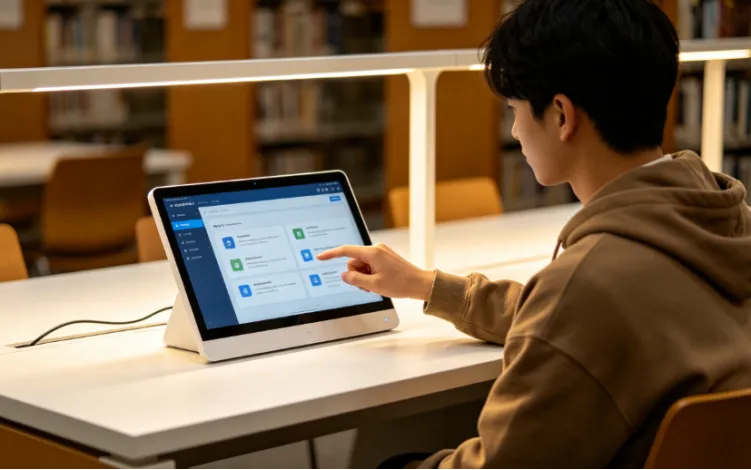
A library self-learning touchscreen terminal helps users hunt for book resources. They can view daily notices, check class schedules, or log into learning platforms. It looks much neater than a heavy desktop tower and monitor. You get less junk on the desk and fewer messy cables. That means fewer people asking who unplugged the power cord.
How Do You Pick the Right Size?
You should pick a size based on how far people sit and how many kids use it at once. The 23.6 inch Android all-in-one machine is great for quiet one-to-one learning. It fits nicely on reception desks and tight study areas. The 27 inch Android all-in-one machine belongs on teacher desks or inside training rooms. It is also good for small-group use. The 32 inch Android all-in-one machine works best for larger shared viewing. It shines in public learning areas and as interactive displays where lots of kids stand around the screen together.
For most school buyers, the best Android all-in-one touchscreen desktop for education must balance screen size and touch comfort. System stability and solid service support are also huge factors. A super flashy screen might grab eyes for a week. But a simple, practical tool gets used every single day.
FAQ
Q1: Is an Android All-in-One Touchscreen Desktop suitable for schools?
A: Yes, it is. It easily supports daily classroom teaching and online learning. It also handles fun interactive activities and quiet self-learning spaces using just one single device.
Q2: Which size is better for education and learning?
A: You should choose the 23.6 inch size for personal study time. Pick the 27 inch size for teacher desks or staff training rooms. The 32 inch size works best for crowded, shared learning areas.
Q3: Can it run education apps?
A: Yes, absolutely. The Android system easily runs learning apps and neat media tools. It also loads testing platforms and gives smooth online course access.
Q4: Is it useful for training centers?
A: Yes. A training center touchscreen display is very handy. It can show lessons, quick product demos, videos, and exams in a very simple, touch-friendly way.
Q5: Can the device be customized for a school project?
A: Yes, it can. A custom Android all-in-one touchscreen solution for education allows for many changes. You can adjust the software, hardware, user interface, and even the branding based on what your school project needs.


