A red package may look rich on screen and turn orange on paper. A pale gray can pick up a green cast. These shifts waste ink, paper, and approval time. Monitor calibration for printing gives you a repeatable way to judge color before production.
This guide explains how to calibrate monitor to printer through stable lighting, ICC profiles, measured settings, and test prints. When choosing a working display, review the YIAISIGN product range with panel size, brightness, ports, and native resolution in mind. Each item affects screen to print color accuracy.
Why Do Screen and Print Colors Drift?
Monitor and printer color matching starts with a basic physical difference. Your screen emits light. Paper reflects light from the room. A bright display can make shadows look open and colors look cleaner than the final print, so the artwork may be adjusted too dark before anyone notices.
RGB Light and Printed Ink
A display forms color from red, green, and blue light. A printer uses cyan, magenta, yellow, black, and sometimes extra inks. Each device has its own gamut. A vivid blue on a wide-gamut panel may sit outside a matte paper’s range. Color calibration for graphic design maps these limits for a controlled conversion.
ICC Profiles Link Each Device
ICC profiles for monitor and printer describe how each device handles color. The display profile records white point and tone response. A print profile depends on ink and paper. Change the paper surface and you change white point, black depth, and saturation. Keep the profile name beside the paper name in your job notes. Tiny habit, big time saver.
What Should You Prepare Before Calibration?
Calibration works when the room and equipment stay steady. If sunlight crosses the desk during measurement, your eyes adapt to a moving target. The same problem appears when automatic brightness changes the panel halfway through a proofing session.
Set a Stable Viewing Area
Remove glare from windows and lamps. Use one repeatable light source when checking prints. Clean the screen, then let it warm up for 20 to 30 minutes. Set its native resolution and turn off automatic brightness, dynamic contrast, night color, and changing picture modes. A lamp reflected in a dark image can fool you. It happens a lot.
Check the Printer and Paper
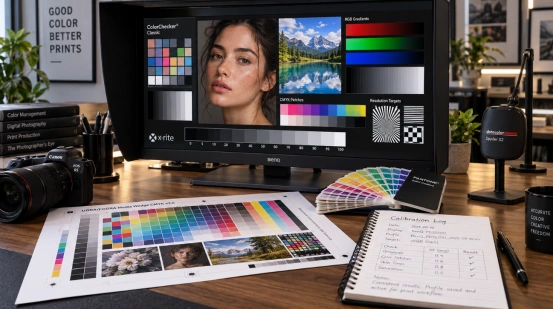
Run a nozzle check and confirm the correct ink set. Load the paper used for the final job, then select the matching media type in the driver. Copy paper cannot show the same black level or color range as coated photo paper. Keep one test file with skin tones, gray steps, gradients, and solid red, green, and blue patches.
How Do You Calibrate a Monitor to a Printer?
Use the same order each time. The sequence makes faults easier to trace because you change one part of the color chain, check it, and move on. It also gives another operator enough detail to repeat the setup.
Step 1: Set Your Display Targets
Choose the working color mode used by your design files. Set a moderate brightness that fits the print-viewing light. Select the white point and gamma required by your workflow. Avoid copying a single brightness number from another studio; a dim proofing booth and a sunlit office need different targets.
Step 2: Measure the Screen
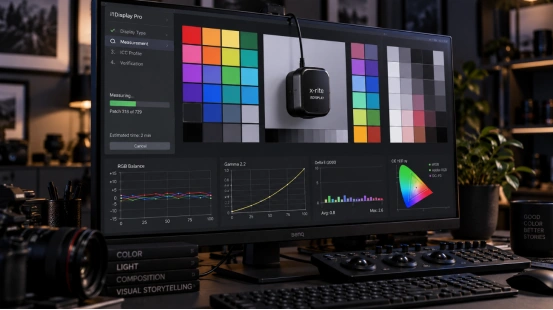
Hardware colorimeter calibration reads color patches and creates a profile from measured output. Place the sensor flat against the panel and keep room light stable. Save the profile with the display name and date. Visual calibration suits a basic setup, though your eyes adapt quickly and miss small neutral shifts.
Step 3: Assign the Correct Print Profile
Select the printer and paper ICC profile that matches the actual ink and media. Choose a rendering intent after viewing the soft proof. Perceptual rendering can help photographs with broad color ranges. Relative colorimetric rendering often suits logos and product graphics whose in-gamut colors need close placement. Let one part of the workflow manage color. Double conversion can add a cast.
Step 4: Save a Repeatable Preset
When you calibrate a monitor for print colors, record display mode, brightness, profile, media type, rendering intent, and software settings. Save the preset with a plain name your team can recognize. A preset called final-new-2 tells the next operator very little.
How Do You Check a Test Print?
A profile is a measurement file. The print remains the practical check. Use the same reference image, paper, ink, driver preset, and viewing light for every comparison. This approach makes screen to print color accuracy visible and measurable.
Read the Print After It Settles
Let an inkjet print dry before final judgment. Compare neutral grays, skin tones, shadows, saturated colors, and gradients. For monitor calibration for photo printing, check whether dark hair, fabric texture, and near-black details remain separate. If paper looks darker than the screen, lower display brightness and repeat the test before editing.
Trace Color Shifts in Order
When monitor and printer color matching still fails, check the display profile, soft-proof profile, media setting, color-management control, and viewing light. Run solid white, black, red, green, and blue images on the screen to spot uneven tint or brightness. A local patch can point to the panel or backlight. A full-image shift usually sends you back to profiles and settings.
How Often Should You Recalibrate?
For regular design work, check calibration every two to four weeks. A color-critical run may call for weekly checks. Recalibrate after display, software, paper, ink, or room lighting changes.
Keep a Short Calibration Record
Write down the date, display profile, brightness, white point, paper, print profile, and test result. Keep the approved test print in a sleeve near the workstation. That simple record helps you separate normal paper variation from a display that has drifted.
Building a Display Workflow around Repeatable Color
The calibration record also sharpens a display specification. You can define native resolution, brightness range, color mode, ports, firmware behavior, mounting position, and acceptance tests before a screen enters daily design work. Ask for a sample and run your own color patches, gradients, photographs, and long-session brightness checks.
YIAISIGN develops smart displays, digital signage, all-in-one screens, digital art frames, and portable monitors, with OEM and ODM options for screen size, brightness, touch, ports, operating system, enclosure, firmware, and mounting points. For a color review station or visual-content project, share the required color mode, input source, working hours, room light, test files, and calibration routine. A sample test can then compare uniformity, neutral balance, source switching, warm-up behavior, and saved settings against your screen to print color accuracy target.
FAQ
Q1: Can You Do Monitor Calibration for Printing by Eye?
A: You can make a basic visual adjustment with grayscale and color test images. Hardware colorimeter calibration gives you measured results and a profile you can reload.
Q2: Which ICC Profiles for Monitor and Printer Should You Use?
A: Use a display profile created for your screen and a print profile made for the exact printer, ink, and paper combination.
Q3: Why Does a Print Look Darker Than the Screen?
A: The display brightness may be too high for your print-viewing light. Lower the target brightness, recalibrate, and repeat the same test print.
Q4: Does Every Paper Need a Printer and Paper ICC Profile?
A: Each paper changes reflected white, ink spread, black depth, and color range. Use a matching profile for papers that matter to the final result.
Q5: How Often Should You Check Monitor Calibration for Photo Printing?
A: Check it every two to four weeks for routine work, and more often during color-critical production or after equipment, software, ink, paper, or lighting changes.