One screen is easy to update. A hundred screens across stores, offices, or transit sites bring a different set of daily questions. Which locations received the latest campaign? Who can change a local message? Which display needs attention?
To remote manage 100+ advertising displays, you need clear screen groups, a content platform, and hardware that fits each site. You can also compare display categories while you build the hardware list.
What Should Your 100+ Screen Management Plan Cover?
At this scale, multi-location digital signage management involves people and devices as much as playlists. A regional manager may need to change a promotion in one area while the head office keeps control of brand-wide messages. Your process should make those jobs clear before the screen count grows.
Map Locations and Screen Roles
Create a location list with the region, site name, screen purpose, time zone, network contact, and local owner. Give each display a consistent name, such as West / Seattle / Store 014 / Checkout 02. This simple habit helps support teams find the right screen during a busy shift.
Group screens by location, then add labels for their use, such as entrance, checkout, lobby, or staff area. A regional campaign can go to a city group, while a safety notice can target every staff-room screen. Keep a record of who owns each group.
Set Access and Approval Rules
Assign platform roles by job. Head office can approve brand campaigns, regional teams can schedule local offers, and store staff can submit updates for their own site. Ask vendors to demonstrate location-level permissions, approval steps, publishing history, and user logs in a live account.
Which Hardware Fits a Multi-Location Rollout?
Digital signage for multiple locations depends on consistent installation details. Screen size, mounting, viewing distance, operating hours, and content format all affect the choice. Standardizing a few configurations makes replacement and staff training easier to plan.
Match the Display to the Site
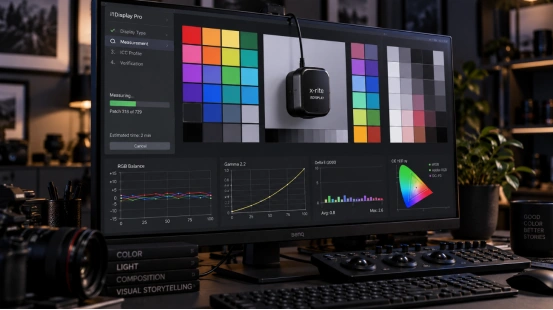
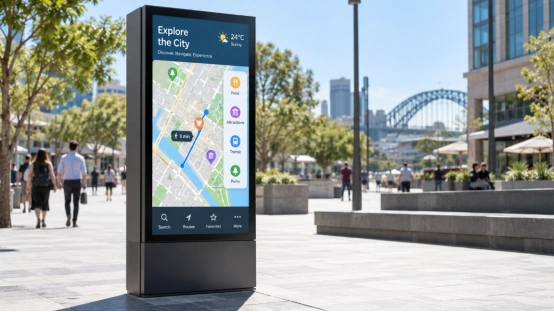
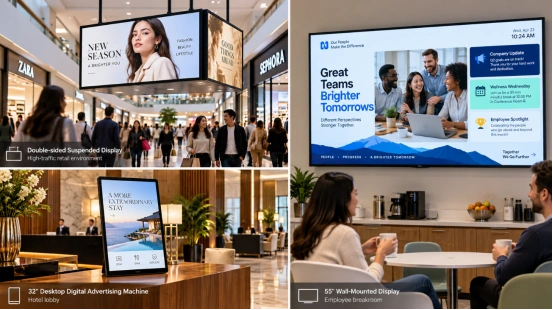
A checkout screen has different viewing needs from a suspended display in a mall aisle. Check resolution, brightness, orientation, mounting, power, ventilation, and expected daily runtime. For high-traffic spaces, confirm the product’s published operating guidance and warranty terms before ordering.
Digital signage display hardware should also fit the content workflow. For a product reference, review this digital signage display range. Confirm which image and video formats the player supports, how updates reach each unit, and whether the screen can run the schedule required by the location. Commercial digital signage displays should match the duty cycle and mounting needs at each site.
Standardize Players and Installation
Keep a supported list of screen and player models. Record serial numbers, firmware, network setup, mounting type, and spare units. A new location can then follow the same checklist, and IT can compare a failed device with a known working setup.
How Do You Publish Content Across Locations?
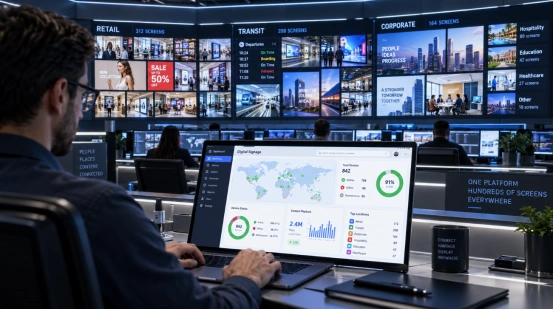
Centralized digital signage management gives the communications team one place to prepare and schedule content. The platform should let you target all screens, a region, one location, or a labeled group. Before rollout, test what local users can edit and how the system reports a completed publish.
Use Templates and Local Playlists
Set brand templates for fonts, colors, and logo placement. Then create local playlists for store hours, regional offers, or event information. Keep the campaign window visible in the schedule so an old promotion does not stay on a screen after its end date.
Digital signage content scheduling should account for each site’s time zone. Preview a campaign on a representative display, publish it to a small pilot group, and check the result before sending it to the full network. This extra check catches wrong crops and unreadable text early.
Keep Publishing Records
Record the content owner, approval, target group, start time, and end time. These details help answer routine questions from a store manager and give the marketing team a clear history when a campaign changes.
What Should Remote Screen Management Include?
Remote screen management works when the content platform and device support process show useful status, then give someone a clear next step. Confirm which status data the platform receives and how often it refreshes. Ask for a sample alert and a sample troubleshooting record during vendor review.
Create a Simple Response Path
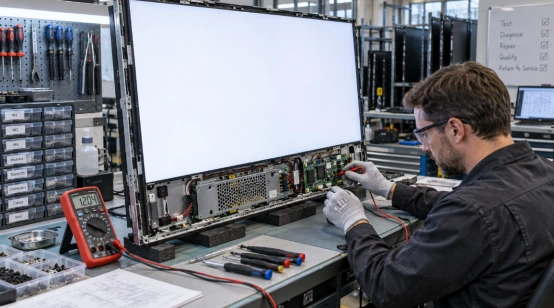
When a display looks wrong, check the published playlist, last device check-in, network connection, and player status. If a remote restart or app refresh is available, record the action and confirm the screen returns to its schedule. Send hardware issues to the local contact with the site name and asset number.
Give each region one support route, such as a ticket queue or shared service desk. Ask local staff for a quick photo when the problem involves a blank screen, poor placement, or a visible cable issue. The image can save a round of back-and-forth.
Pilot Before Adding Every Site
Start with a few locations that represent your actual conditions, such as a busy retail floor, a lobby, and a site with tighter network rules. Test enrollment, content scheduling, permissions, and support handoffs. Use the findings to refine the rollout checklist before the next group goes live.
How Can Display Hardware Support a Growing Network?
As a display supplier, YIAISIGN focuses on the screen endpoint in this setup. Its range includes a 55-inch suspended display for retail, malls, airports, and public spaces. The product page lists remote content management, support for video and image formats, and 24/7 operation.
Its 32-inch advertising machine lists Full HD resolution, wall or desk placement, and large-order suitability. Those details help you compare screen formats for different locations.
Your content platform still needs to provide fleet-level grouping, user permissions, status reporting, and publishing records. Confirm player and CMS compatibility for the exact configuration before deployment.
FAQ
Q1: Can one platform manage 100+ advertising displays?
A: Yes, when its licensing, grouping, publishing, user roles, and device status features cover your screen count. Ask for a demonstration using your location structure.
Q2: How do you update screens in several cities at once?
A: Select a region or screen group, schedule the content for each local time zone, then review the platform’s publishing status.
Q3: Can local teams change their own screen content?
A: They can when the platform assigns location-level access and routes local updates through the approval rules you set.
Q4: What should you check before ordering digital signage hardware?
A: Review size, resolution, installation, operating hours, content formats, player compatibility, warranty, and spare-unit availability.
Q5: Does a display supplier also provide centralized screen monitoring?
A: Product capabilities vary. Confirm whether monitoring, user permissions, alerts, and remote device controls come from the display, the player, or a separate CMS.