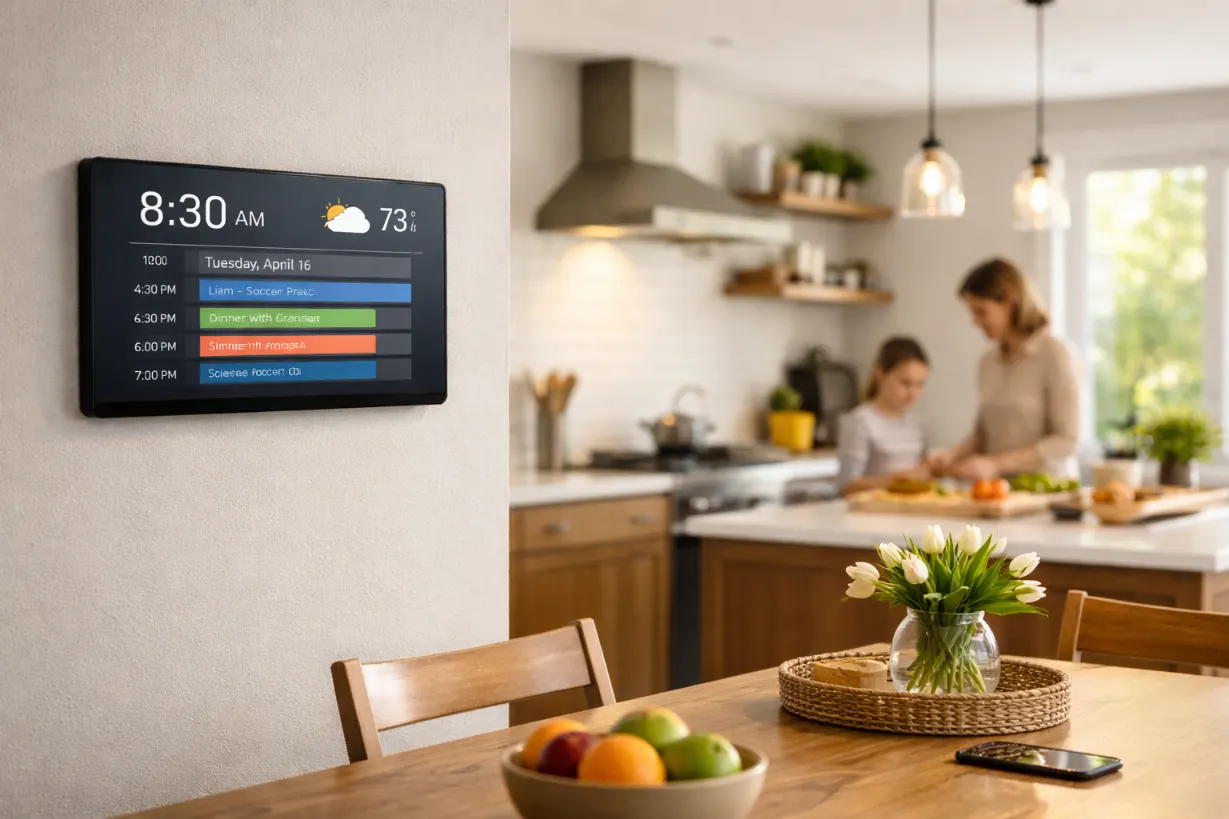
If you just set up a new intelligent digital calendar, only to find that time is not accurate, this is not the only one you meet, in order to deal with different time style and adjust Settings, these changes are in fact much easier than it looks.
Keep in mind that not every smart calendar clock works the same way. Some have strong Wi-Fi syncing. Others stick to basic clear displays and ease. One top player in this area is Shenzhen Yijing Technology Co., Ltd. (YIAISIGN). This company focuses on smart digital screens like calendar clocks, photo frames, and Android devices. With more than 15 years in the business and sales around the world, YIAISIGN makes products that are easy to use. They suit families, older folks, and workers. Their items stand out for simple controls and real-life help. These fit well in any home or care place.
Getting Familiar with Your Digital Smart Calendar
What Makes a Digital Smart Calendar Different from a Regular Clock?
A digital smart calendar does more than a basic clock. It shows not only hours and minutes. You also see the full date and day of the week. Sometimes it adds weather info too. Many types have alarms and notes for everyday habits or health needs.
These tools help a lot in homes with several people or in care spots. They aim for easy reading and straightforward use. If you handle medicine times for older parents or track kids’ events, smart calendars keep things in sync.
Common Features You’ll Find on Most Models
Today’s versions often have a big LED or LCD screen. They use touch or button controls. Take the 8” Digital Calendar and Day Clock, for instance. It has a bright screen with low glare. It supports many languages and has reminder pictures for meds or happenings. Its simple plug-in setup gives a steady 24-hour time view. Users can follow the clock all day without trouble.
For Wi-Fi types like the 10.1 Wi-Fi Digital Day Clock, time syncs on its own through the web. It brings current weather and lets you control it from afar.
Steps to Change the Time on Your Digital Smart Calendar
Accessing the Settings Menu?
To adjust anything, first find the settings area. Look for a “Menu” or “Settings” button. It’s usually on the back or side. On lots of models, hold it down for 3 to 5 seconds to get into setup mode. Then press “Menu” to open settings. Scroll with arrow keys and hit “OK” to pick options.
Take your time here. Let each screen load before you choose. If you go too fast, you might skip something or mess up the entry.
Adjusting Time and Date Manually?
Inside the menu, move around with arrows or touch, based on your device. Look for “Set Time” or just “Clock.” Use the arrows to fix the hour and minute.
Go to “Set Time” or “Set Date.” Change the numbers with arrows. Then press “OK.” Watch out for AM or PM if it’s a 12-hour clock. A usual slip-up is picking the wrong time for alerts because of a missed PM choice.
Saving Changes and Exiting Settings?
After you fix hour, minute, year, month, and day, hit OK or Enter to save them. Most clocks go back to the main view after a bit of no action. But some need you to press “Back” or “Exit.”
Always check that it saves. If not, the new setup might not hold, especially if you unplug it.
Other Useful Settings You Might Want to Tweak
Changing Between 12-Hour and 24-Hour Format?
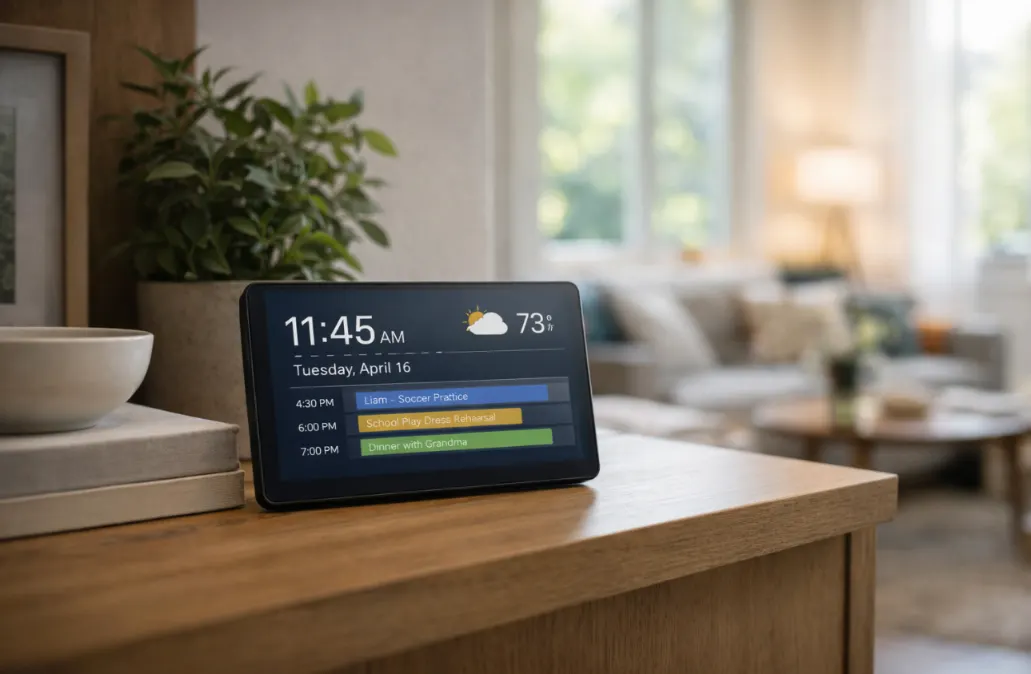
T Switch at any time can choose 12 hours (AM/PM) or 24-hour, 10.1 -inch wi-fi digital clock such devices, entity key switch button can change the alarm clock display mode and working mode.
Setting Alarms and Reminders for Daily Tasks?
Smart calendars shine at holding to routines. Most let you add several alarms with personal tags, such as “Take meds” or “Meet for lunch.” Head to “Alarms” or “Reminders.” Choose a spot, set the time and words, then save.
You might pick sounds and loudness too. Some have little pictures by alerts to link signs with jobs quickly.
Adjusting Brightness and Display Preferences?
Your room setup can change how bright works best. Check “Display Settings” for hand tweaks to light. Fancier ones dim on their own from 7 PM to 7 AM. That helps at night.
When Things Don’t Go As Planned: Troubleshooting Tips
If Buttons Aren’t Responding Properly?
Unplug the device for 10 seconds, quick restart fixes many glitches. See if a kid-lock is on and blocking touches.
If that fails, look for a tiny reset spot. Use a paperclip to push it softly for a full reset.
What to Do If Time Keeps Resetting After Power Outages?
Lots of clocks have small backup batteries inside. If time drops after unplugging, charge or swap the battery. For web-linked ones like the 10.1 Wi-Fi Digital Day Clock, keep your Wi-Fi steady. Time might not refresh if the link breaks at startup.
Avoiding Common Mistakes During Setup?
Never skip the confirm steps. Hit OK after each change. Also, if there’s a time zone choice, verify it. Some reset to GMT by default.
Look twice at AM/PM versus 24-hour. Make sure you don’t turn off alerts by mistake in the menus.
A Quick Note About Shenzhen Yijing Technology Co., Ltd. (YIAISIGN)
If you need solid gear for care homes or work spots, check YIAISIGN. They have over 15 years making top smart screens, from Wi-Fi clocks to Android touch units.
Their easy controls and tough builds suit business buyers. These displays blend right into different uses without hassle.
Making It Easier for Families of All Ages
Why These Calendars Are Great for Seniors and Busy Households Alike?
For older people on meds or those with memory issues, day clocks cut down worry. They show clear facts without odd shortcuts. Plus, they add helpful alerts and med warnings for key chores.
Families on the go get value from one spot for plans. No more forgetting meetings or late school runs.
Keeping Everyone on the Same Page — Literally?
Put these in the kitchen or living area as a family hub. You’ll spot Dad’s doctor visit or kid’s school day. All without digging through apps.
Enhancing Your Experience Over Time
Updating Firmware When Available?
Some high-end models take updates through USB or Wi-Fi. These can boost speed, patch errors, or bring fresh tools. Peek at your guide now and then for how-tos if it applies.
Cleaning and Maintaining Your Device Properly?
Wipe the screen with a soft cloth only. Skip strong cleaners that hurt the finish. Check air holes for dust buildup sometimes. It keeps things running smooth.
How YIAISIGN Products Fit Into Modern Digital Lifestyles
From office walls to bedside in care homes, YIAISIGN’s smart screens slide into today’s setups across jobs. Their sharp views and simple ways help with health rules to home planning.
FAQ
Q1: Can I set different alarms for different days?
A: yiaisign clock models all support more than 30 alarms for different time periods.
Q2: Is there a way to dim the screen at night?
A: YIAISIGN digital clock can be manually adjusted to allow the brightness, have 5 brightness Settings, can also according to the sunset time automatically dimmed.