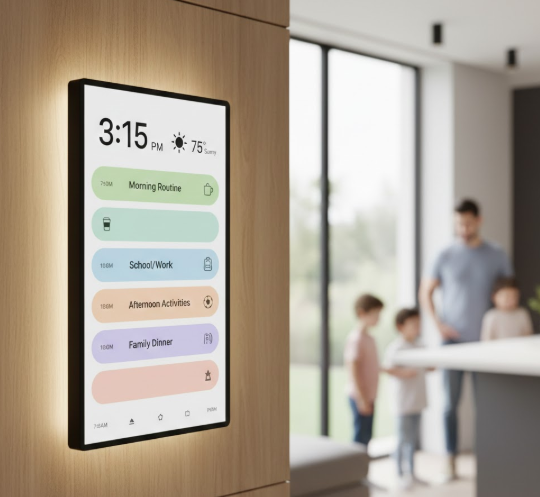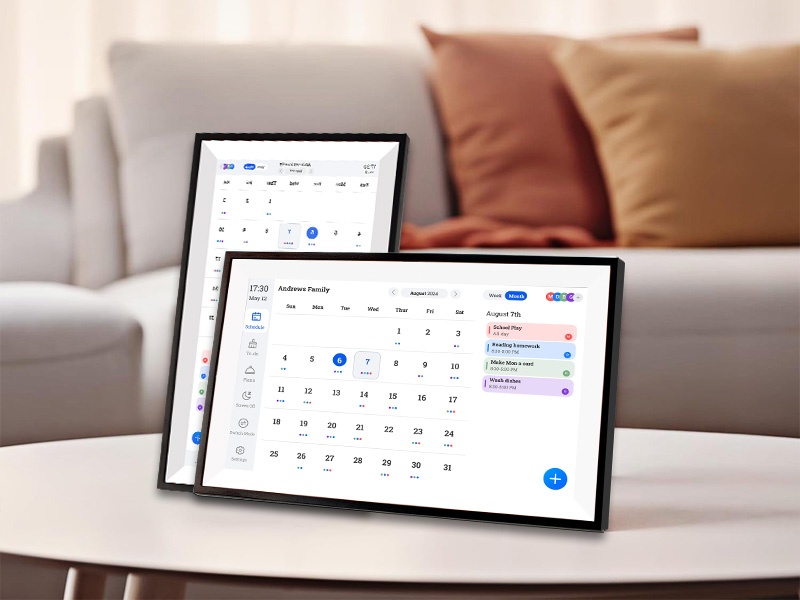
People search for “Skylight Calendar alternatives” because the idea makes sense: one shared screen where schedules, chores, and reminders stop living in five different apps. The frustration usually shows up later. A slow sync here, a confusing account role there, then a simple WiFi change turns into a weekend project. This article looks at what really matters once the novelty wears off, and what you should check before choosing a digital family calendar, a family digital wall calendar, or an electronic family planner for retail or private label.
Why People Look for Skylight Calendar Alternatives
Most families do not switch because a device is “bad.” They switch because daily friction adds up. Once chores, school events, meal plans, and caregiver routines move onto a screen, every delay feels louder. The good news: those pain points are predictable, so you can screen alternatives fast and avoid the usual traps.
The Five Switching Triggers That Show Up After Week Three
Cost creep shows up first. A calendar looks like a one-time purchase, then a subscription adds features that feel “required” later.
Single-point dependency is next. When one wall display becomes the household “source of truth,” a WiFi change, a slow update, or an app login issue can break the whole routine.
Role confusion hits big households. A family electronic calendar needs clear admin vs member behavior. If everyone can edit everything, the calendar becomes noisy. If no one can edit, it becomes useless.
Privacy nerves arrive when the screen sits in a kitchen or entryway. Shared visibility is the whole point, but it also means guests see what is on the board.
Extra mental load is the final straw. A smart family calendar is supposed to reduce chaos. If it adds “one more system to manage,” it gets ignored.
Pricing and AI: What Changes Real Daily Use
Price comparisons are easy. Daily life is harder. A calendar’s real cost is the time spent keeping it accurate. AI can help, but only if it reduces input effort without creating new confusion. Think in totals: device cost, subscription cost, and the “support cost” inside your household (or your customer support queue, if you sell it).
Total Cost of Ownership: Device vs Ongoing Fees
Subscriptions are not automatically bad. The problem is the boundary. If a feature feels basic to your household—like list imports or faster scheduling—paywalls can trigger frustration and returns. When you compare alternatives, treat fees as part of the decision, not an afterthought. A “cheap” device with an expensive subscription can outcost a pricier unit over 2–3 years.
AI That Helps Input vs AI That Sells a Story
AI that saves time usually does one of these:
- turns messy inputs into events
- helps build meal plans and shopping lists faster
- speeds up repetitive chores and routines
That sounds great on paper. It only matters if the calendar basics feel stable. If sync feels slow, AI becomes a shiny add-on sitting on top of a shaky floor.
The Market Baseline: What Category-Leading Calendars Make Standard
Today, the baseline is not “show a calendar.” Many popular products push the same promise: shared schedule plus chores and lists. So, for a digital smart calendar to feel modern, it usually needs:
- a clean digital monthly calendar view for planning
- a fast digital daily calendar view for routines
- lists, chores, and “who owns this” clarity (that’s the planner part)
- remote editing that shows up quickly on the screen
That baseline is exactly why buyers also search for an electronic family planner, not only a calendar.
The “Must-Have” Set Users Now Expect
A smart calendar wall should work like a household dashboard, not like a tablet you babysit.
Look for:
- multi-calendar sync (Apple/Google/Outlook are the big ones)
- task and list tools that stay visible
- simple onboarding for non-technical users
- readable layout from across a room (a wall device gets judged at 3 meters)
This is where many “best digital family calendar” roundup pages miss the point. They focus on features, then skip the daily friction that causes returns.
Where Popular Brands Often Fall Short in Real Daily Use
Complaints rarely come from missing features. They come from basic workflow breaks. When a user says “it doesn’t work,” they often mean “it doesn’t update when I need it” or “someone changed it and now it’s wrong.”
The five risk areas below are common across the category. Treat them as a checklist, not as a brand attack.
The Five Daily-Use Risk Areas
Sync lag and stale screens
Remote edits must show quickly. If a parent changes pickup time at 3:10 pm and the kitchen screen still shows the old plan, trust drops instantly.
For OEM programs, a dedicated companion app with a predictable remote-update loop matters more than flashy widgets. A FotoCube-style remote sharing workflow is the kind of loop families keep using.
Roles and permissions confusion
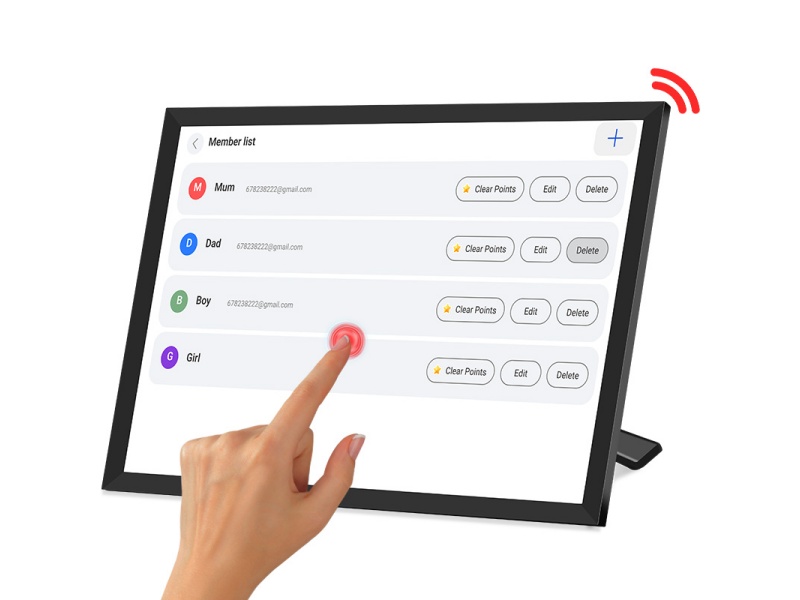
One admin usually sets the rules. Kids and grandparents need simpler controls. If permissions are unclear, the calendar becomes either locked or chaotic.
When you ship a family electronic calendar at scale, role design is not a UI detail. It is a support-cost decision, and it should be tested like a feature.
Subscription boundaries and feature paywalls
Paid tiers can work. Confusing tiers create angry reviews. If core actions feel gated, customers blame your brand, not the pricing model.
When subscriptions exist, packaging and onboarding must spell out what is included, so the “why is this locked?” complaint doesn’t land on your support team.
Screen readability and touch feel inconsistency
A touch digital calendar lives on quick taps. Slow wake time kills habits. Poor viewing angles turn a wall screen into a “walk closer to read it” screen.
Kitchen placement rewards IPS viewing angles and responsive capacitive multi-touch, and size tiers let you sell by placement instead of discounting.
Support ownership for software changes
App updates can change UX. That is manageable for a tech user. It is not manageable for a busy family, and it is even worse for retail programs.
Private label programs live or die on update ownership. If the manufacturer controls firmware and app cadence, you avoid surprise UX shifts that trigger returns.
Comparison Table: Daily-Use Risks vs What You Should Require
A comparison table should not be a popularity contest. It should read like a return-prevention sheet. Use the table below to decide what to demand—whether you are buying one device for home or sourcing a family digital wall calendar line for retail.
| Daily-Use Risk | What You Should Require | Why It Matters | How YIAISIGN Helps You Meet It |
|---|---|---|---|
| Sync lag / stale display | Clear remote-update loop | “It didn’t update” becomes a top complaint | FotoCube app workflow + remote updates that keep the display current |
| Role chaos | Admin/member roles + simple invites | Families blame the device, not setup | Shared-family design focus, so roles and daily actions stay simple |
| Poor readability | IPS viewing angle + size tiers | Kitchen distance is real | IPS options + custom sizes (10.1–32 inch) for desk, wall, and shared spaces |
| Slow touch / wake | Responsive capacitive touch | Slow screens get ignored fast | Capacitive multi-touch options + hardware QA around daily interaction |
| Low retention after novelty | Photo + art modes + practical media tools | Usage drives reviews | 3-in-1 modes (album + calendar + art gallery) + AI photo restore/upscale/crop |
Small tangent: people rarely say “the viewing angle is bad.” They say “this thing is annoying.” Same problem, different words.
The 9 Alternatives Grouped by Household Style
This section keeps search coverage without turning into a shopping list. Each option gets a quick, practical summary. No “perfect pick” claims.
Dedicated Family Calendar Displays
A dedicated display is best when you want a true smart calendar wall in a shared space, not another app on another phone.
- Skylight-style calendar displays
A focused wall device with family-first UI and optional add-ons in some ecosystems. Watch-out: subscription boundaries and long-term software ownership questions. - Cozyla-style calendar displays
Often positioned around schedules plus routines, chores, and meal planning on one screen. Watch-out: the more “OS-like” the device becomes, the more you must care about updates and UX drift. - Dragon Touch-style calendar displays
Commonly positioned around app control plus chores, lists, and photo frame functions. Watch-out: keep “free vs paid” lines simple in messaging if you sell a similar model.
App-First Family Organizers
These work when your household already lives on phones and you do not need a wall display. App-first options can still power a digital family calendar, but they shift “shared visibility” back onto phones.
- Google Calendar
Strong cross-platform syncing and sharing. Watch-out: chores and lists need extra structure. - Cozi
Built for family coordination and shared lists. Watch-out: success depends on consistent app habits. - TimeTree
Popular for shared calendars and group scheduling. Watch-out: notifications can get loud fast. - Teamup
Useful for shared schedules with link-based access patterns. Watch-out: can feel more “organization” than “family.”
Power-User and Work-Linked Calendars
These fit households where work calendars drive everything. They can serve as the backend for a family electronic calendar display.
If the household already runs on Microsoft or Google, the wall display becomes the “viewer,” while the phone apps remain the editing engine. That setup can work, but only if sync feels reliable.
How to Choose Among Skylight Alternatives: a Short Checklist
Treat this like a 90-second internal meeting: “What do you actually need?” The right answer depends less on brand and more on daily behavior.
The 7-Point Decision Filter
- Wall display or app-only? If you want a family digital wall calendar, choose display-first.
- Calendar-first or list-first? Some households mainly need chores and lists (the electronic family planner angle).
- Monthly planning or daily routine? A strong digital monthly calendar view sells the concept; digital daily calendar view builds habit.
- Who is the admin? Pick a system that does not punish the admin with constant maintenance.
- How far away do you read it? Entryway and kitchen use favors larger screens and strong viewing angles.
- How much do you hate subscriptions? Be honest. Subscription stress becomes product stress.
- Do you need a “keep it on the wall” reason? Photos and art modes help retention.
Setup and Migration Notes
Switching systems often fails for a boring reason: two systems run at the same time, then everyone ignores both. Migration works best when you pick one source of truth and commit.
A Simple Migration Prep Checklist
- Decide which calendar becomes the master (Google, Apple, Outlook).
- Clean duplicates and old recurring events first.
- Set role rules early: who can add, who can edit, who can manage devices.
- Run a one-week test with chores and reminders before going all-in.
The Three Migration Mistakes That Waste a Weekend
Duplicate systems: paper calendar + wall screen + phone apps, all at once.
Permission chaos: everyone edits, then nobody trusts the screen.
Notification spam: too many reminders makes people mute everything.
If You Are Sourcing for Retail or Private Label
Home buyers can accept a few quirks. Retail programs cannot. Once you sell a large digital family calendar or a family digital wall calendar at scale, support costs eat margin.
A sourcing-ready program should cover long-term daily use: touch interaction, custom to-dos, reminders, stable WiFi, remote updates, and a dedicated companion app. Size ladders matter too. Custom sizes from 10.1 to 32 inches let you price by placement (desk, kitchen, entryway, care station) instead of fighting on one SKU.
Why YIAISIGN Fits Private-Label Smart Calendar Programs
If you want a smart family calendar that holds up past the “new gadget” phase, you need a partner that treats it as a long-term screen product, not a one-off tablet build. YIAISIGN focuses on digital display products such as digital photo frames, digital calendar clocks, and Android all-in-one devices, with OEM/ODM support built around hardware choice, software workflow, and production delivery. For private label, that matters because the real risk is not launch day. It’s month six, when the app updates, families add more members, and the screen must keep syncing without drama. YIAISIGN’s product direction also matches what retention looks like in this category: a 3-in-1 experience (smart photo album + family calendar + art gallery) with a companion app (FotoCube), remote updates, and AI photo tools like restore, upscale, and crop, plus size flexibility for different placements.
FAQ
Q1: What matters more for daily use, digital monthly calendar or digital daily calendar view?
A: Both. Monthly view helps planning. Daily view runs routines. If daily view feels slow or cluttered, the habit dies even if the monthly view looks great.
Q2: Do chores and lists really matter, or is that just marketing?
A: They matter. Families use chores, grocery lists, and quick to-dos every day. That’s the “planner” part that keeps a digital family calendar useful between big events.
Q3: What should you request from an OEM partner before placing a larger PO?
A: Ask who owns the app workflow and updates, what the remote-update loop looks like, and how issues get fixed after launch. Then request a sample unit and run a simple weekly test: shared edits, chores, reminders, WiFi change, and a reboot.