A 15.6-inch touchscreen calendar might look real basic when you first see it. But it shifts how small offices set up jobs, watch times, and send quick notes.
When you set a gadget like this in the heart of a work spot, it grows into more than a date tool. It turns into a team board. There your group checks duties, tweaks ideas, and fixes problems faster than with paper lists or spread-out programs. The coming parts explain how this size, touch method, and smart screen plan create real shifts in busy spots.
Why Small Offices Need a Centralized Scheduling Device
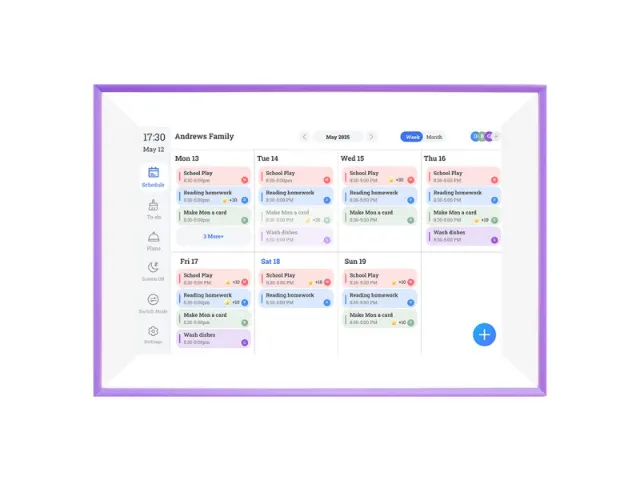
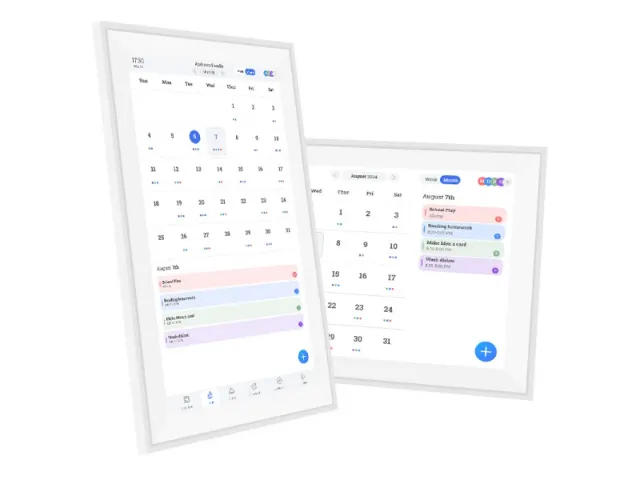
Company members often depend on group chat, post-it notes, talk to organize the daily plan, for important event planning is not well to remind and review view. A 15.6-inch touchscreen calendar to display event calendar to clear, remind and Shared to-do list, so everyone knows what to do next, without having to ask people around us.
Common Workflow Problems in Small Offices
Most small offices share similar issues. Morning meetings start late because two people were waiting for a room that someone else booked. A project gets stuck because a task sat hidden in someone’s personal app. Paper whiteboards get erased before the team is finished with them. These things may sound minor, but they add up over a week. A shared touchscreen calendar keeps the plan visible and simple to update.
The Role of a 15.6-Inch Display in Office Scheduling
The 15.6-inch size holds a sweet spot for visibility. It is large enough for a group to stand around and review the plan together, yet not so big that it becomes awkward on a wall or desk. The IPS panel used in many 15.6-inch digital calendars offers a wide viewing angle and clear text even when someone stands off to the side. That matters in a small office where people move quickly and glance at the screen.
Why 15.6-Inch Works Better Than 10-Inch Models for Teams
10 inch screen fits on individual desks, 15.6 -inch screen provides a larger space, such as calendar, share the task list, as well as the display of the day’s weather widget, also suitable for reception area or meeting room entrance to assist the team to make a decision.
Wall-Mounted vs Desk Placement
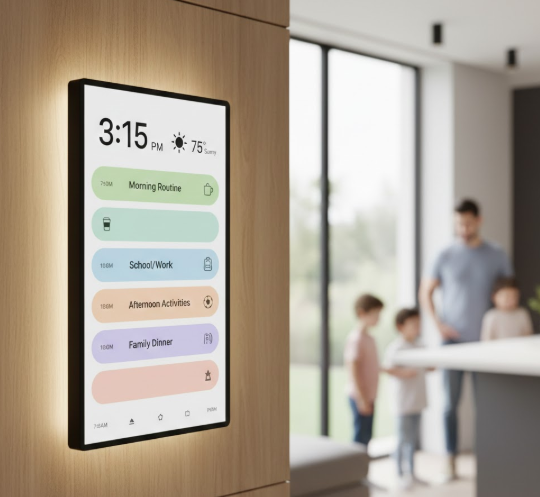
Both placements have value. A wall-mounted 15.6-inch screen turns into a natural meeting point where team members stop for quick updates. A desk stand works better for small studios or shared tables where people gather to plan projects each morning. The key is that the screen remains stable and visible as part of everyday movement in the office.
Multi-User Touch Interaction: How It Improves Team Coordination
Touch interaction makes planning feel less formal and more fluid. Your team can drag tasks across days, open events with a tap, or make a quick note during a short break. The touch panel is part of the reason this works so well. Many 15.6-inch digital calendars use 10-point capacitive touch. It responds smoothly when several people interact with it in fast succession, and it is accurate enough for older users who may tap more slowly.
Real-Time Edits and Conflict Prevention
When someone moves a meeting or changes a shift on the touchscreen, the update appears instantly. This reduces double-booking because the team sees changes right away. It also clears confusion between departments. Instead of sending messages back and forth, people can adjust plans together on the spot. In small teams where everyone has different tasks, these real-time changes keep the day running smoothly.
Smart Features That Benefit Small Offices
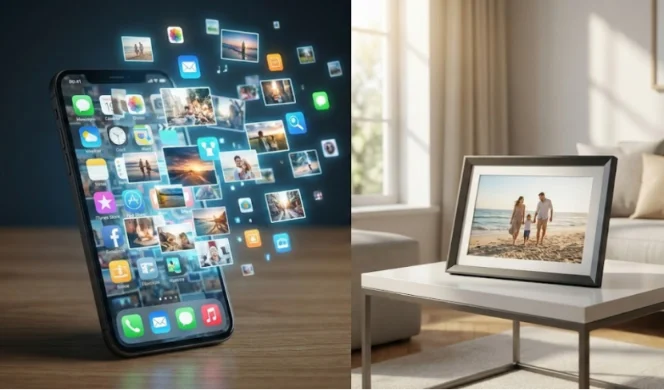
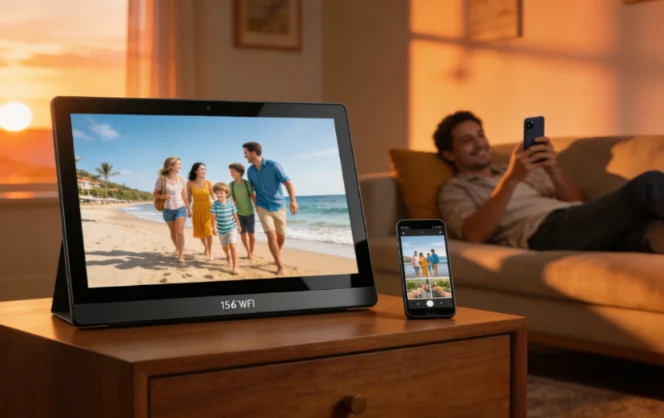
A modern digital calendar does more than display dates. The software behind it supports shared tasks, meeting reminders, and updates to the schedule. Features like the shared gallery or AI-assisted photo cleanup may sound like home functions at first, but they help offices too. You can pin event flyers, snapshots from a recent project, or quick visual notes. The system also updates weather, news, and other small widgets that help your team prepare for the day.
Photo And Media Display for Branding And Messaging
Some offices use the calendar as a light digital signage board when no meetings are shown. It can cycle through staff photos, event posters, or announcements. This helps new employees or visitors feel aligned with the company culture. It also removes the need to print posters that someone has to take down later.
Hardware Requirements for an Office-Ready 15.6-Inch Calendar
1080 p IPS screen, 250 nits brightness and wide visual Angle, can see clearly in bright, WiFi help update quickly, the stability of the android system to switch in a view or calendar display images flowing.
Why OEM/ODM Buyers Should Focus on Performance Specs
CPU and RAM decide how well the tap-and-drag interface responds. Underpowered systems may lag when multiple events load at once. Storage matters when offices keep long-term logs or use the device for visual boards. Before you place an order, it helps to check similar office digital calendar products or other smart office scheduling displays to see how different configurations behave in real devices.
Deployment Scenarios for 15.6-Inch Office Calendars
These calendars work well in many places. Reception desks benefit from a clean view of company events. Meeting rooms use them as booking boards. Creative studios run them as daily task panels. Clinics and small retailers rely on them for shift schedules. The device adds clarity wherever quick updates matter.
The Business Value for OEM/ODM Buyers
As a category, the 15.6-inch touchscreen calendar has steady demand. Offices look for a mix of clarity, low maintenance, and simple interaction. For you, this size creates a strong SKU that fits both home and commercial spaces. It opens new channels that value planning tools more than decorative devices.
Sourcing Tips for OEM/ODM Buyers
Before confirming an order, ask for touch tests, brightness checks, and a sample running real scheduling software. Confirm if the firmware can receive long-term updates and if the UI can be tailored to your market. Some buyers also request mounting accessories, packaging options, or on-screen themes. These small adjustments help the device blend into different office styles.
Checklist for Manufacturers
Check the panel quality, touch responsiveness, WiFi stability, multi-user sync behavior, and aging test results. Ask suppliers about their background as an enterprise smart display manufacturer, since long-term reliability depends on their experience in large-screen devices.
YIAISIGN As A Partner for Office Scheduling Displays
YIAISIGN focus on intelligent scheduling based on android devices, display products YIAISIGN production background including multiple display categories, for the need to customize the shell, software adjustment or brand buyers to provide OEM/ODM model.
FAQ
Q1: Why choose a 15.6-inch touchscreen calendar for a small office
A: It is big enough for teams to gather around and read updates at a glance. The size gives room for a full calendar, task list, and side widgets without feeling crowded.
Q2: Does a 15.6-inch calendar work well for meeting room scheduling
A: Yes, the screen is clear at a distance and easy to tap when someone books or moves a meeting. Many offices also use it outside conference rooms as a simple booking board.
Q3: What hardware should you check before approving an OEM order
A: Focus on the display brightness, touch accuracy, WiFi performance, and the device’s ability to run scheduling views smoothly. These details affect daily use more than you might expect.
Q4: Can this kind of calendar replace paper whiteboards
A: In most teams it can. Digital updates are quicker, and everyone sees changes right away. It also avoids the problem of someone wiping the board too soon.
Q5: Is touchscreen interaction helpful for older staff or visitors
A: Usually yes. The touch gestures are simple, and the 15.6-inch screen leaves enough space for big buttons and clear layouts, which makes it friendly for anyone passing by.